The Multi-Tablet Revolution: How to Connect 7 Food Delivery Devices to One Bluetooth Printer
The Multi-Tablet Revolution: How to Connect 7 Food Delivery Devices to One Bluetooth Printer
In the competitive landscape of the 2026 restaurant industry, your counter space is a high-value asset. However, as delivery platforms like UberEats, DoorDash, and SkipTheDishes continue to drive a significant portion of revenue, many restaurant owners find their checkout areas cluttered with a "forest" of tablets and a confusing web of individual receipt printers.
The traditional "one-tablet-one-printer" model is not only inefficient; it is a major operational bottleneck. Today, we look at the engineering breakthrough that is helping restaurants in Canada and Australia reclaim their counters: High-concurrency Bluetooth printing.
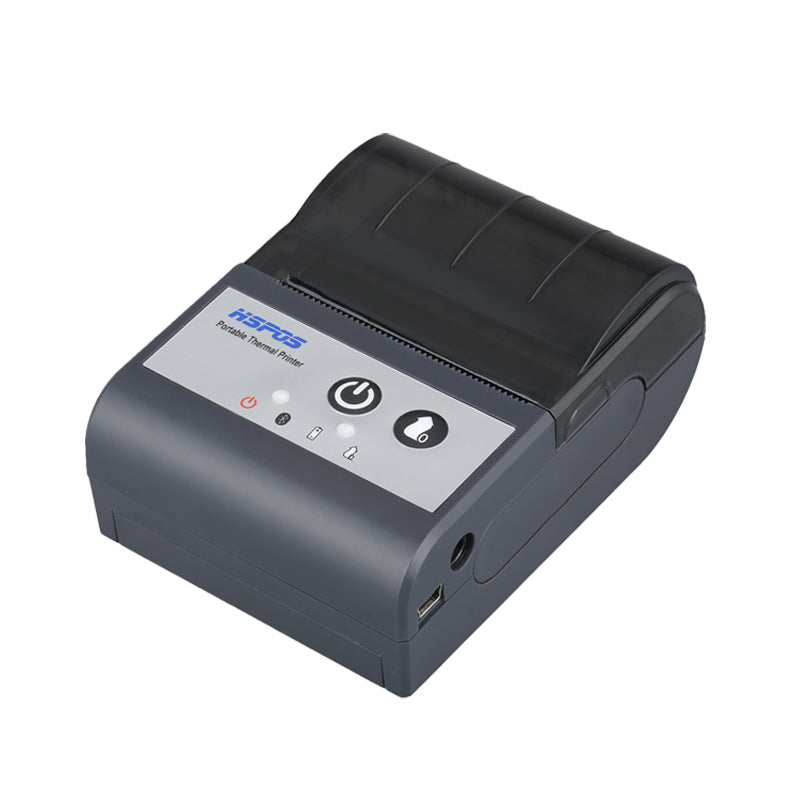
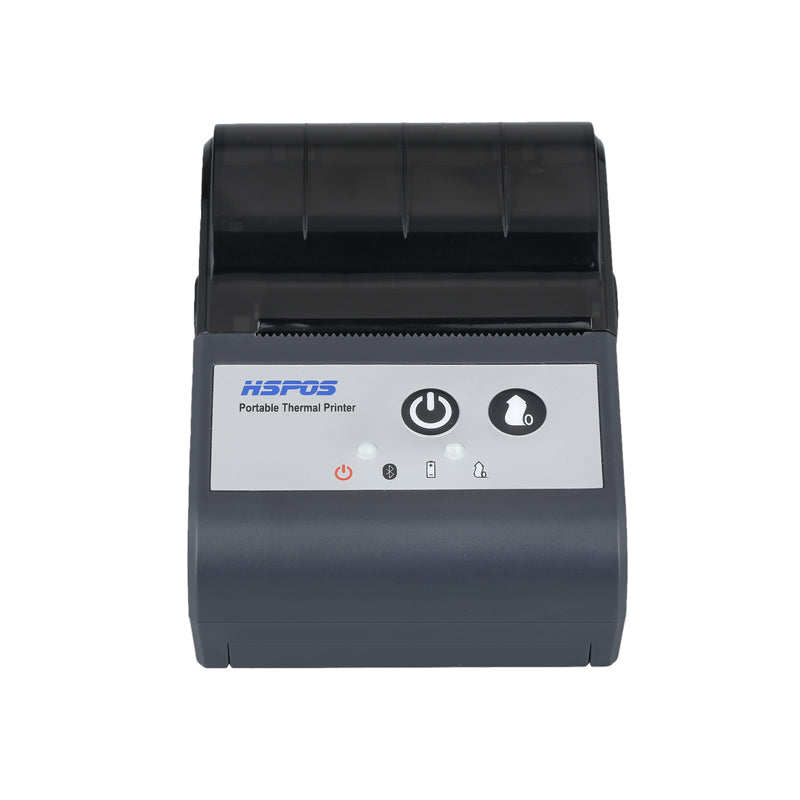
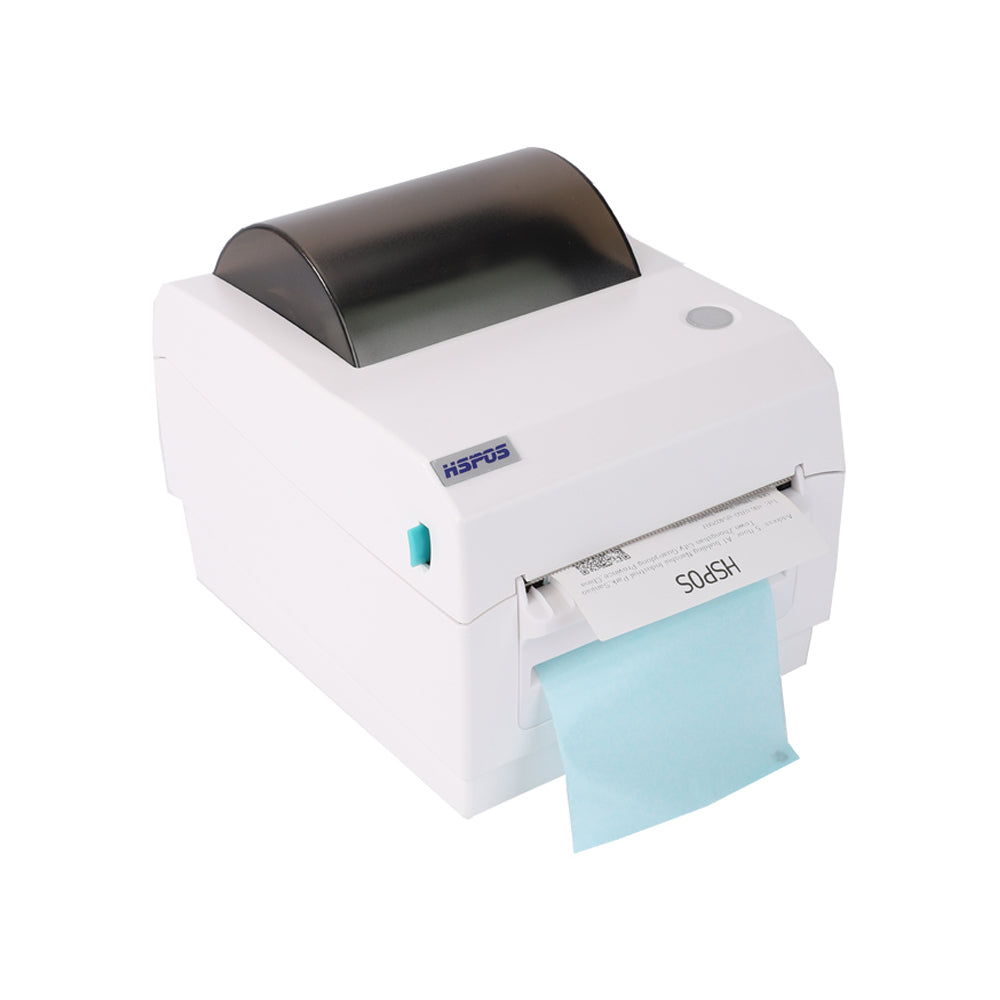
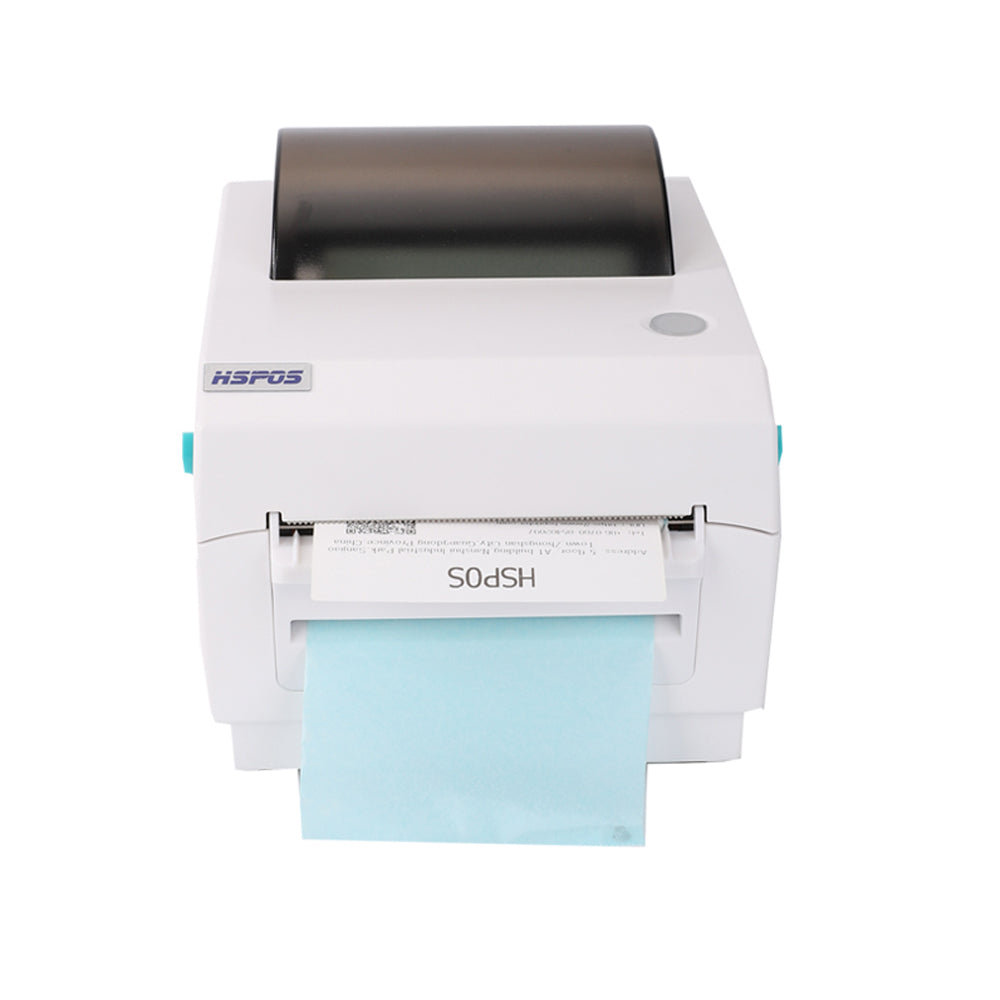
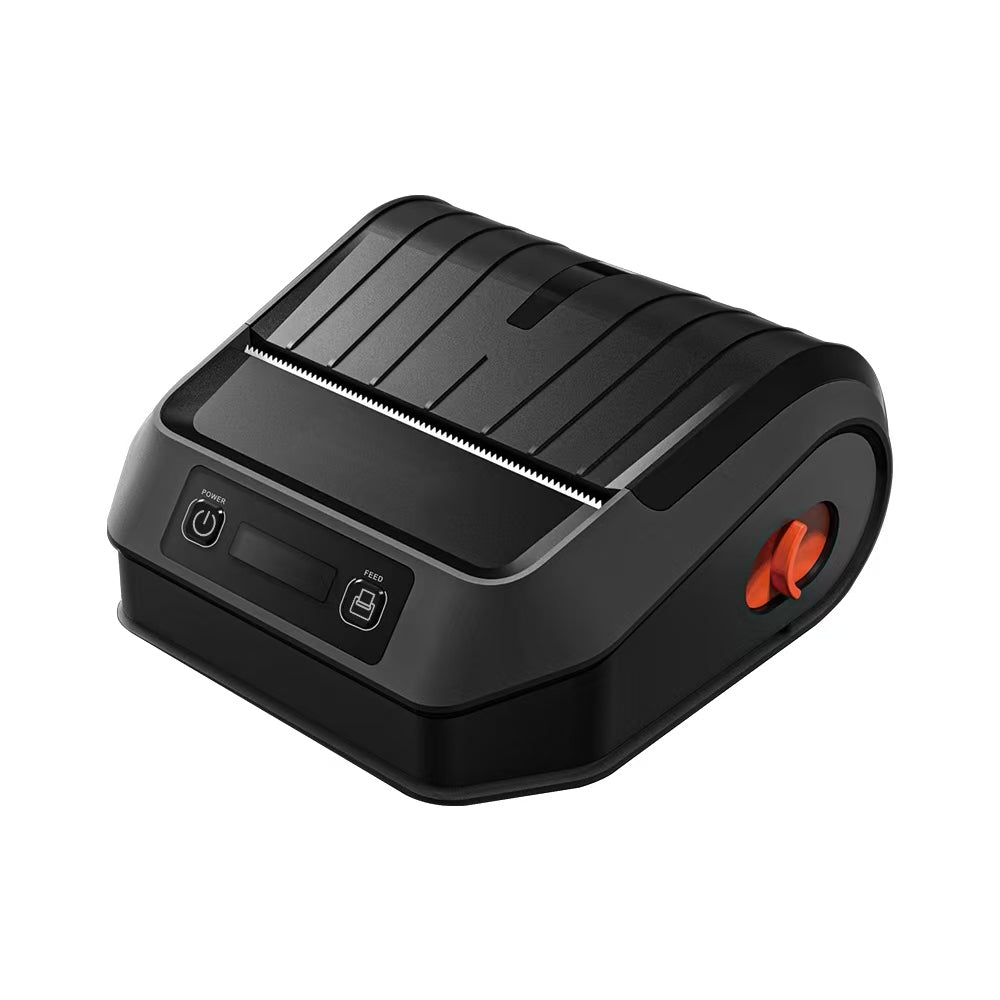
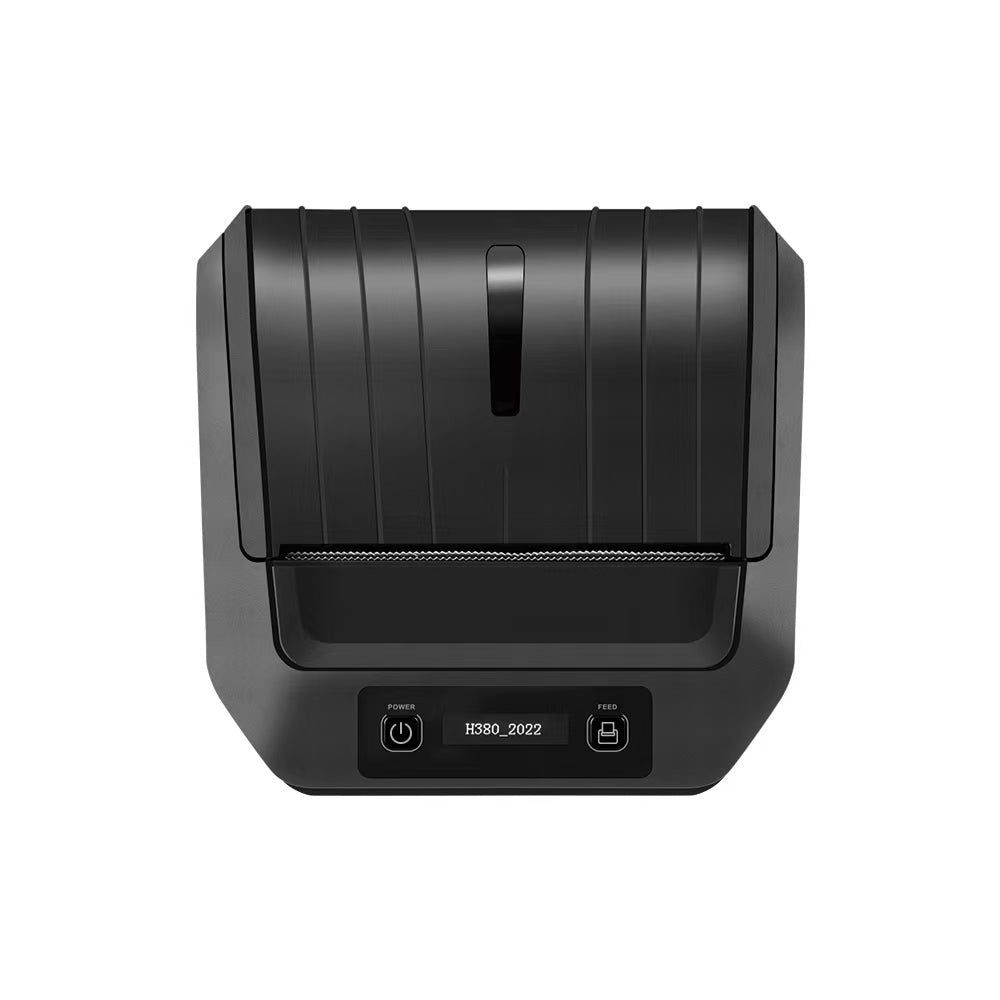
Specifically, we dive into how the TechPOS 3-inch Multi-Device Receipt Printer allows you to bridge up to 7 Android tablets simultaneously to a single, industrial-grade hub.
1. The Physics of Concurrency: Why Standard Printers Fail
Most consumer-grade Bluetooth printers use a "Point-to-Point" connection protocol. Once Tablet A is paired with the printer, the Bluetooth channel is locked. If Tablet B (your DoorDash device) tries to send a print command, it will return a "Printer Busy" or "Connection Failed" error.
In a busy kitchen during the Friday night rush, these dropped connections lead to missed orders, cold food, and frustrated drivers.
The TechPOS HS-M80 (TP-M30) utilizes an advanced Bluetooth stack with a high-capacity data buffer. It acts as a local print server, queuing incoming data from multiple MAC addresses and printing them in a seamless, sequential stream. This is the secret to zero-lag order fulfillment.
2. Setting Up Your 7-Tablet Hub: A Step-by-Step Checklist
Connecting multiple tablets to the TechPOS 3-inch Printer is straightforward, provided you follow the correct sequence:
- Driver Initialization: Ensure the printer is in "Bluetooth Mode" (indicated by the blue LED on the front panel).
- Sequential Pairing: Pair your primary POS tablet first. Once connected, open the second tablet (e.g., your UberEats device) and search for the HS-M80 under Bluetooth settings.
- App Configuration: Inside each delivery app (DoorDash Merchant, UberEats Manager), go to *Settings* -> *Printers* and select the HS-M80.
- Buffer Management: For the best results, ensure your tablets are within 10 meters of the printer to maintain maximum signal strength.
- Auto-Cutter: Rated for 1.5 million clean cuts, ensuring no paper jams even during 24/7 operations.
- Thermal Head: High-density elements designed to print hundreds of meters of paper without losing contrast.
- Local Support: With warehouses in Ontario (Canada) and Melbourne (Australia), TechPOS provides 3-7 day shipping on all replacement parts and hardware.
3. Pairing with the 14-inch POS Master Station
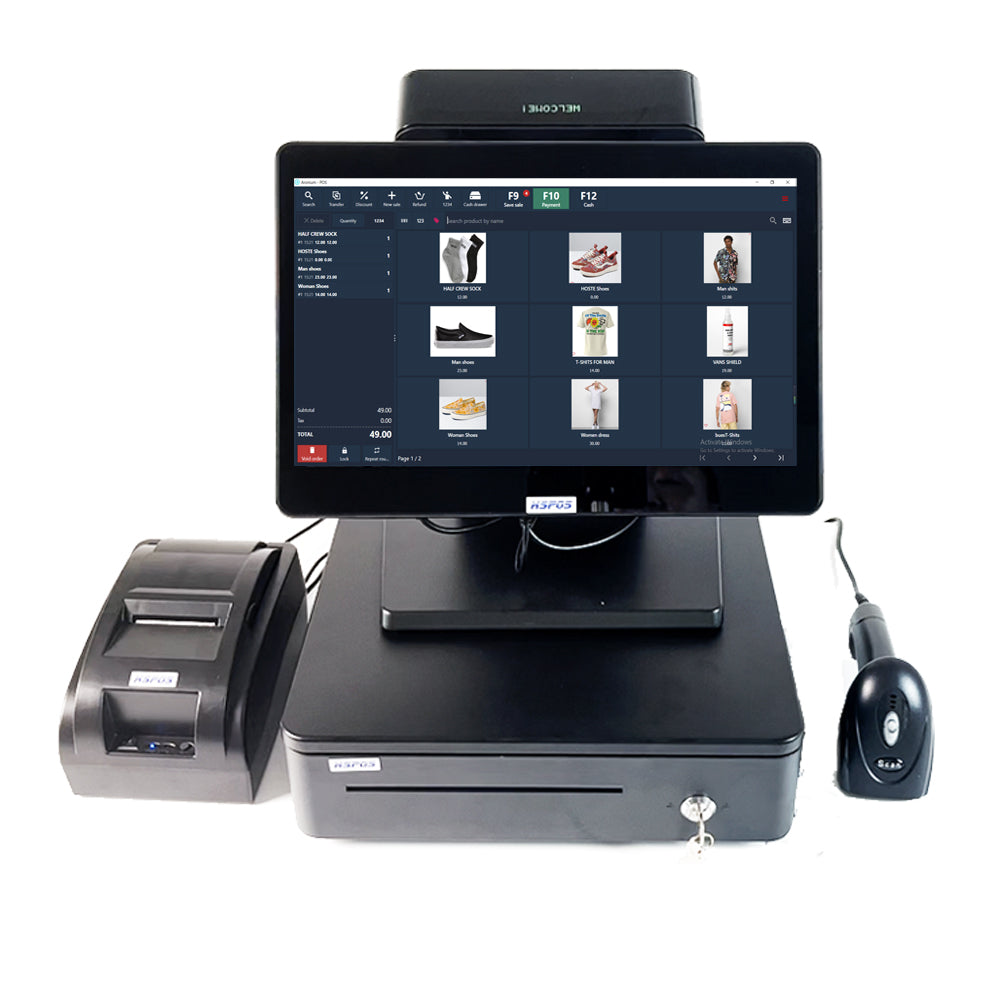
While mobile tablets handle delivery, your front-of-house still needs a dedicated anchor. The TechPOS 14-inch Windows/Android POS Touch Terminal is designed to work as the master controller for your printing hub.
By connecting the 14-inch terminal via USB and your delivery tablets via Bluetooth, you create a fail-safe hybrid setup. The terminal manages your walk-in customers and local inventory, while the HS-M80 processes the digital order stream—all using the same roll of 80mm thermal paper.
4. Why Industrial Quality Matters in B2B
A printer that breaks during a rush is worse than no printer at all. The TechPOS HS-M80 isn't just about connectivity; it's about industrial longevity.
Conclusion: Clean Counter, Clear Mind
Scaling your restaurant's delivery volume shouldn't mean adding more clutter to your workspace. By upgrading to a high-concurrency hub like the TechPOS 3-inch Printer, you are investing in a system that grows with your business.
Ready to eliminate the tablet chaos?
👉 Shop the HS-M80 Multi-Device Printer Collection or contact our technical team for a custom B2B connectivity audit today.
The Heavy-Duty Advantage: Why Manual Push-Open Cash Drawers are the Unsung Heroes of Retail Stability
Ending the 'Ghost Order' Nightmare: Why Your Kitchen Needs Industrial Concurrency
Related Posts

The Ultimate Fulfillment Tool for E-commerce Sellers: TechPOS TP-K38 High-Speed Thermal Label Printer Review

The Ultimate Guide to Android-Compatible Barcode Printers in Australia & Canada: Reliable Hardware for Shopify & DoorDash

Multi-Platform Integration: Connecting Your 14-inch POS to Shopify, Square, and UberEats

The Future of AI Weighing: How Smart Scales are Transforming Grocery Checkout in 2026

The 2026 Master Guide to Setting Up Multiple Delivery Tablets with the HS-M80 (TP-M30)

Ending the 'Ghost Order' Nightmare: Why Your Kitchen Needs Industrial Concurrency