The Ultimate Connection Guide for Barcode Printers and POS Hardware: Windows, Mac, iOS, and Android Platforms
The Ultimate Connection Guide for Barcode Printers and POS Hardware: Windows, Mac, iOS, and Android Platforms
In the fast-growing e-commerce and retail space, hardware integration is the unsung hero of operational scale. Whether you are managing an online boutique in Toronto or running an apparel manufacturing plant in Melbourne, your printers and cash drawers must communicate flawlessly across different operating systems.
One of the most frequent hurdles B2B operators face is connecting high-speed barcode printers and receipt systems to multiple host devices. A single missing driver or incorrect port configuration can ground your entire shipping or checkout line.
This comprehensive guide provides an engineering-level breakdown of how to connect and integrate professional POS hardware across Windows, Mac, iOS, and Android environments.
1. Connecting Barcode Printers to Windows and macOS
Windows and Mac operating systems handle print drivers and USB communication pipelines in fundamentally different ways. Windows uses static driver models (Spooler), while macOS relies on UNIX-based CUPS (Common UNIX Printing System) drivers.
**The Logistics Workhorse: HS-K38**
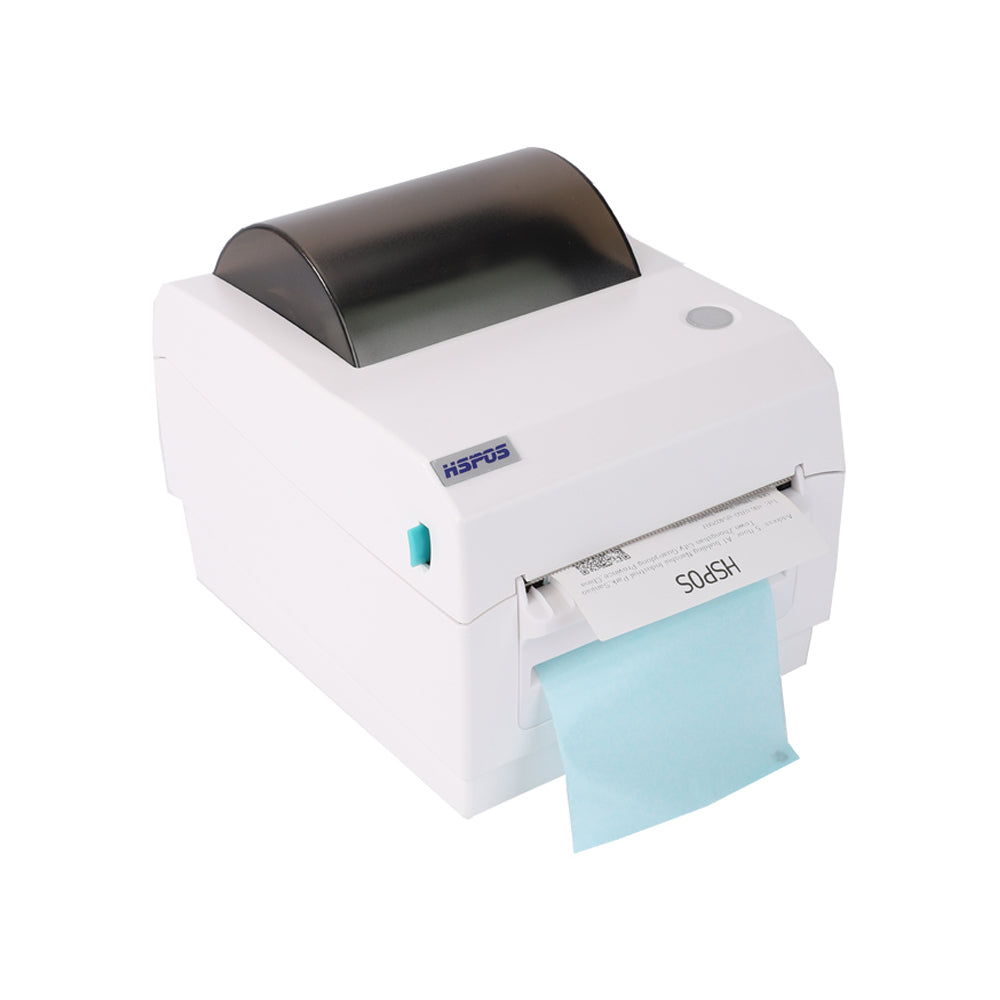
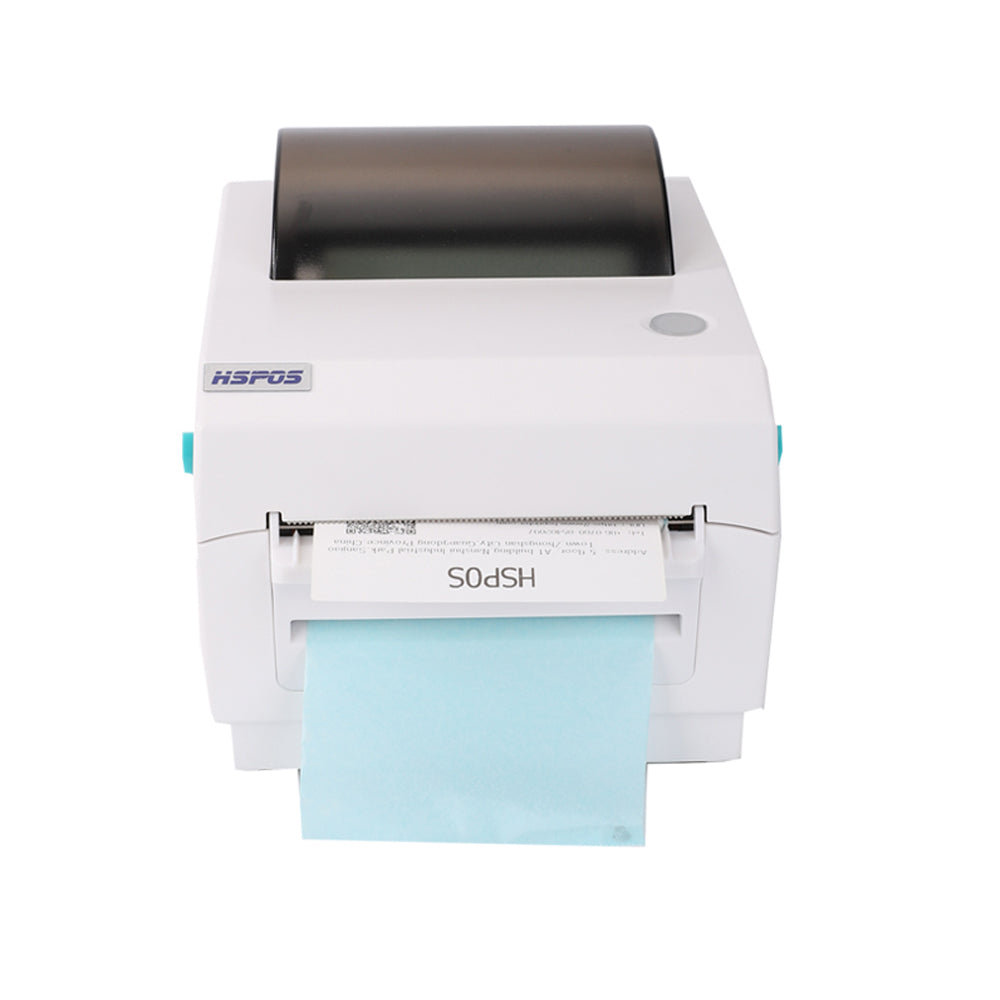
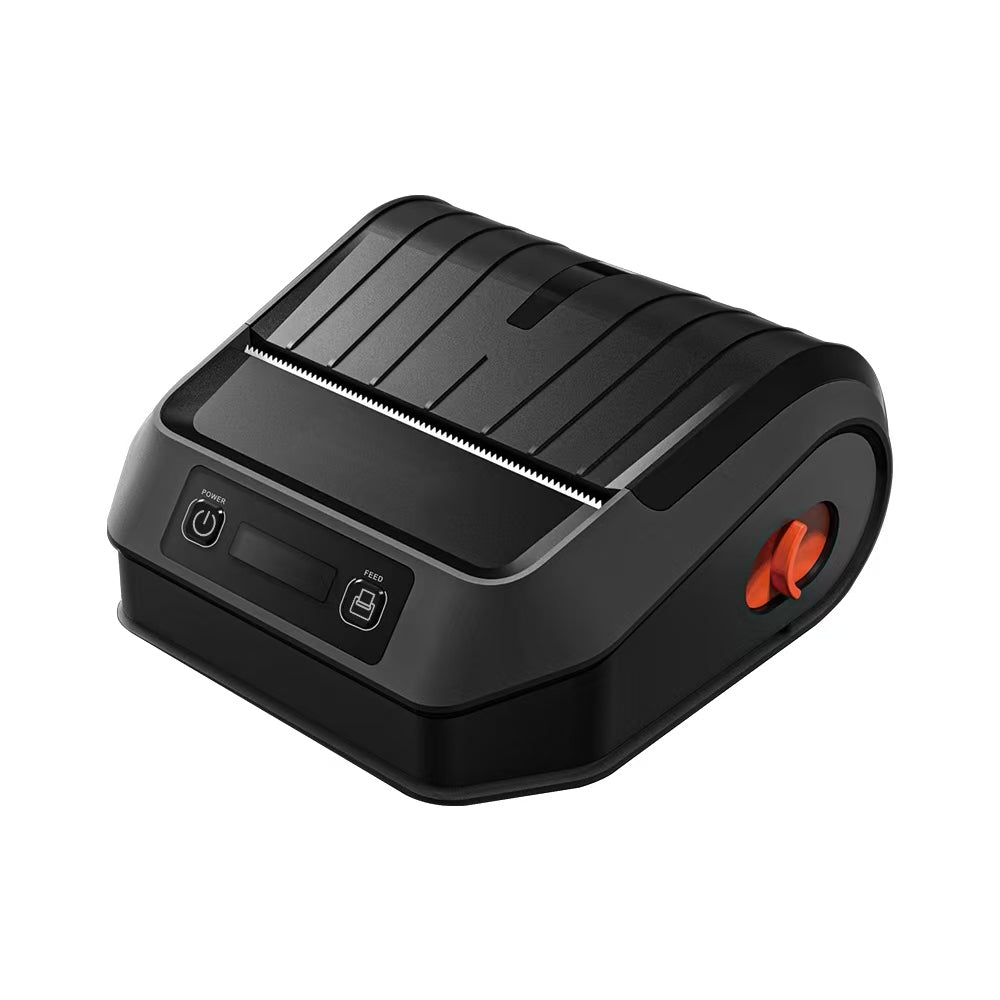
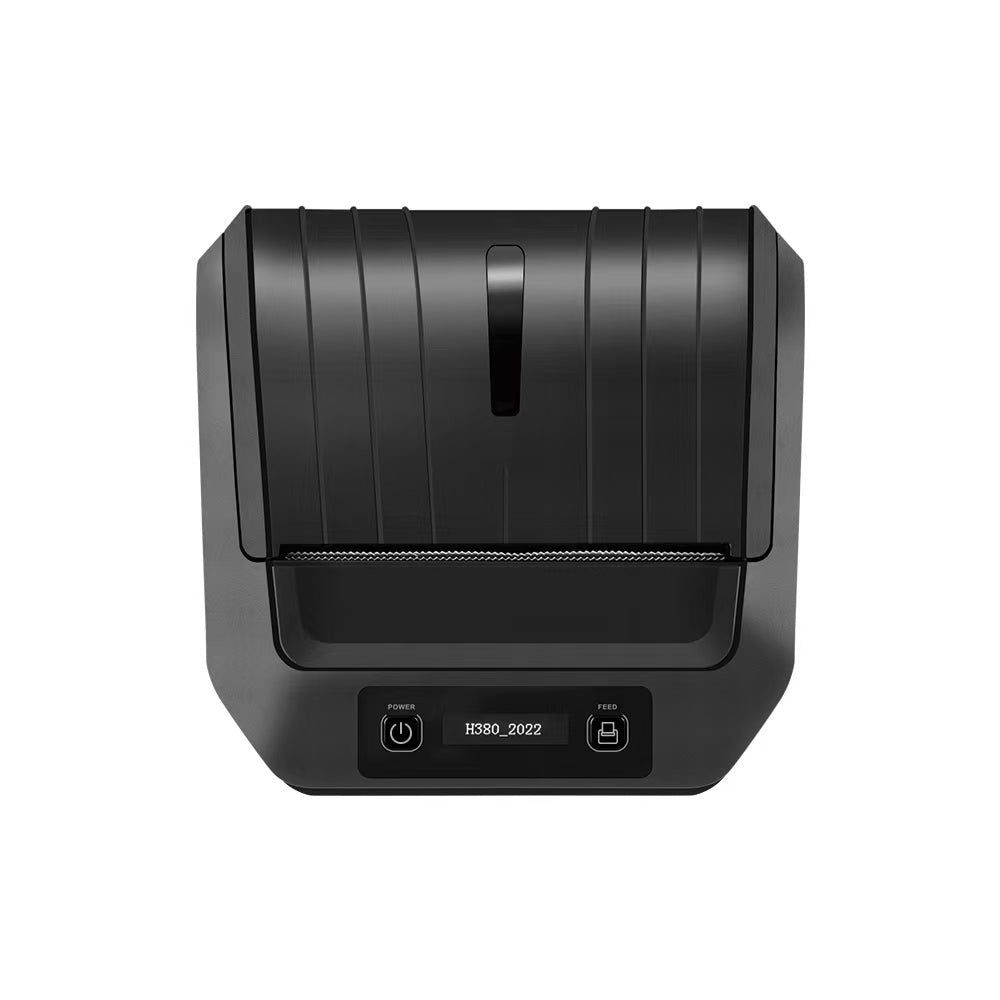
For high-volume shipping labels (UPS, DHL, FedEx, Amazon FBA), the TechPOS HS-K38 4-inch Thermal Label Printer is the industry standard. Operating at 180mm/s with built-in USB and Bluetooth, it is designed for rapid multi-platform deployment.
**Windows Connection Checklist**:
-
Driver Installation: Download the official Windows driver. Do not connect the USB cable until the installer prompts you to do so. This ensures Windows assigns the correct USB virtual print port (e.g.,
USB001orUSB002). -
Page Setup: Go to *Printers & Scanners* -> *HS-K38* -> *Printing Preferences*. Set your stock size to
100mm x 150mm(4"x6") or select your specific custom die-cut dimensions. - Sensor Alignment: Run the Auto-Gap calibration by holding the feed button during power-on to let the optical sensor identify the label backing.
**macOS (CUPS) Connection Checklist**:
- CUPS Driver Package: Install the custom macOS driver pkg file.
- Add Printer: Open *System Settings* -> *Printers & Scanners*. Click *Add Printer*. Select the detected USB printer, and in the *Use* dropdown, choose *Select Software* and search for the HS-K38 model.
-
Page Configuration: Unlike Windows, macOS requires you to set the default page format inside your browser or PDF viewer (e.g., Preview) before sending the print job. Set the paper size to
4.00x6.00"and scaling to *Fit to Printable Area*.
2. Fabric and Wash Care Printing: Thermal Transfer Drivers on Mac/Windows
Apparel manufacturing tags and satin ribbon wash tags require specialized thermal transfer printing to ensure wash-resistance. These industrial printers use double-motor systems to manage high-tension carbon ribbons.
**The Textile Specialist: HS-3064TA**
For precise textile labeling, the 300 DPI TechPOS HS-3064TA Textile Wash Care Label Printer is the benchmark. It is designed to print micro-text and wash icons on satin ribbons and nylon taffeta.
**Configuring Thermal Transfer Communication**:
- Driver Matching: For thermal transfer ribbon printers, your driver must be configured to Thermal Transfer mode rather than Direct Thermal. This activates the internal ribbon motor to feed carbon film in sync with the substrate.
- Sensor Calibration: Because satin ribbons do not have gaps, go to *Driver Settings* -> *Media Type* and select Continuous.
- Darkness and Speed Settings: On Windows or Mac drivers, set the printing speed to slow (
50mm/s) and darkness to high (13-15) to ensure the resin ink fully fuses with the woven satin fibers.
3. High-Concurrency Mobile & Wireless Connections: iOS & Android
As retail and hospitality move towards mobile-first operations, Shopify POS, Square, and delivery platforms (DoorDash, UberEats) rely heavily on iPad and Android tablet setups. This requires hardware to support stable, concurrent wireless connections.
**The Multi-Tablet Hub: HS-M80**
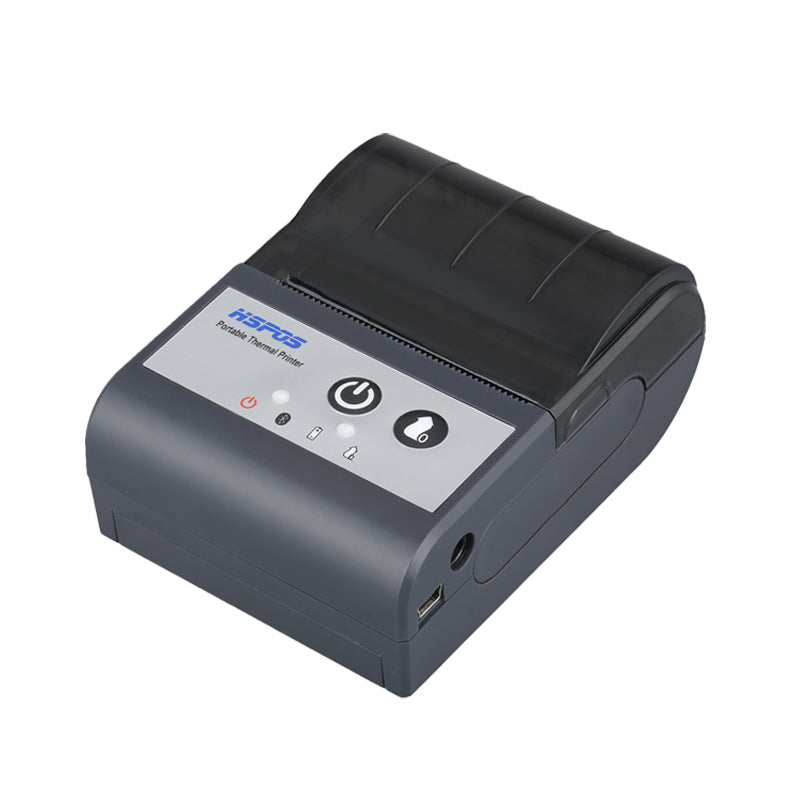
The TechPOS HS-M80 Multi-Device Order Printer is the world's leading concurrent printer. It is capable of connecting up to 7 Android or iOS tablets simultaneously over Bluetooth or Wi-Fi, completely eliminating the lag and dropped connections common in high-traffic kitchens and checkout lanes.
**Wireless Integration Steps**:
- Bluetooth Pairing: In your iOS or Android Bluetooth settings, search for the HS-M80. Pair the device. Note that iOS requires Bluetooth Low Energy (BLE) compatible profiles, which do not need manual PIN entries.
- App Routing: Open your POS app (e.g., Shopify POS, DoorDash Merchant, or Square). Go to *Settings* -> *Hardware* -> *Printers*. Select *Add Bluetooth Printer* and choose the HS-M80.
-
Wi-Fi Static IP Binding: For maximum stability in busy enterprise environments, connect the HS-M80 to your local router via LAN. Assign a Static IP address to the printer inside your router dashboard. In your POS app, add the printer via its static IP (e.g.,
192.168.1.150). This prevents DHCP lease expiration from disconnecting your order tablets.
4. Integrating Cash Drawers and Peripherals
Cash drawers do not connect directly to computers or tablets; they are driven by the receipt printer using an RJ11/RJ12 telephone-style port (known as the DK or Drawer Kick port).
- Wiring: Connect the cash drawer's RJ11 cable directly into the DK port of your receipt printer (such as the HS-M80).
- Triggering: When a transaction is completed, the POS software sends a raw hex command (e.g.,
p 0 25 250 - Driver Setup: In your Windows or Mac printer driver, go to *Device Settings* -> *Cash Select* and set it to *Open Before Printing* or *Open After Printing*.
Conclusion: Bridging the Hardware-Software Divide
Building a high-performance B2B hardware stack is about understanding how individual devices communicate. By matching CUPS drivers for Mac, setting proper media parameters on Windows, and utilizing static IP binding for multi-device tablet setups like the HS-M80, you eliminate connectivity drops and optimize your operational velocity.
At TechPOS, we specialize in high-precision, industrial-grade hardware designed to integrate seamlessly with modern platforms. Let us help you engineer a system that outpaces the competition.
The Ultimate Calibration Guide for B2B Thermal and Thermal Transfer Printers: Nylon Taffeta, Satin Ribbon, and Shipping Labels
Apparel Manufacturing Logistics: Why the HS-K38 is the Preferred 203 DPI Thermal Printer for Clothing Brands
Related Posts

The Ultimate Fulfillment Tool for E-commerce Sellers: TechPOS TP-K38 High-Speed Thermal Label Printer Review

The Ultimate Guide to Android-Compatible Barcode Printers in Australia & Canada: Reliable Hardware for Shopify & DoorDash

Multi-Platform Integration: Connecting Your 14-inch POS to Shopify, Square, and UberEats

The Future of AI Weighing: How Smart Scales are Transforming Grocery Checkout in 2026

The 2026 Master Guide to Setting Up Multiple Delivery Tablets with the HS-M80 (TP-M30)

Ending the 'Ghost Order' Nightmare: Why Your Kitchen Needs Industrial Concurrency

The Multi-Tablet Revolution: How to Connect 7 Food Delivery Devices to One Bluetooth Printer