The Ultimate Calibration Guide for B2B Thermal and Thermal Transfer Printers: Nylon Taffeta, Satin Ribbon, and Shipping Labels
The Ultimate Calibration Guide for B2B Thermal and Thermal Transfer Printers: Nylon Taffeta, Satin Ribbon, and Shipping Labels
In high-volume B2B operations—whether you are running an apparel production facility in Ontario or a high-traffic e-commerce fulfillment warehouse in Melbourne—operational bottlenecks are often caused by the smallest components.
Few issues are more frustrating than a printer that suddenly skips labels, prints "ghosted" barcodes, or flashes a red error light mid-run. These issues are almost always caused by one of two factors: improper media calibration or incorrect printhead settings.
This technical engineering guide provides a step-by-step masterclass on how to calibrate industrial and desktop printers for diverse media, including direct thermal adhesive paper, premium satin ribbon, and dense nylon taffeta.
1. Direct Thermal vs. Thermal Transfer: Understanding the Engineering
To calibrate your hardware correctly, you must first understand the physics of how heat is transferred to your media.
- Direct Thermal (DT): The printhead elements apply heat directly to chemically treated, heat-sensitive paper. There is no ink or ribbon involved. DT is fast and highly cost-effective, but the prints are sensitive to heat, light, and friction.
- Thermal Transfer (TT): The printhead heats a polyester-backed ink ribbon (wax, wax-resin, or pure resin), melting the ink directly onto the substrate (fabric, paper, or plastic). This creates an incredibly durable bond that can withstand moisture, chemical solvents, and high-temperature washing.
2. Calibrating Direct Thermal for Shipping Labels
Shipping and logistics operations demand speed and absolute scannability. If your carrier labels have jagged barcodes or misaligned text, courier scanners will reject them, causing major delivery delays.
**The Workhorse: Direct Thermal Logistics**
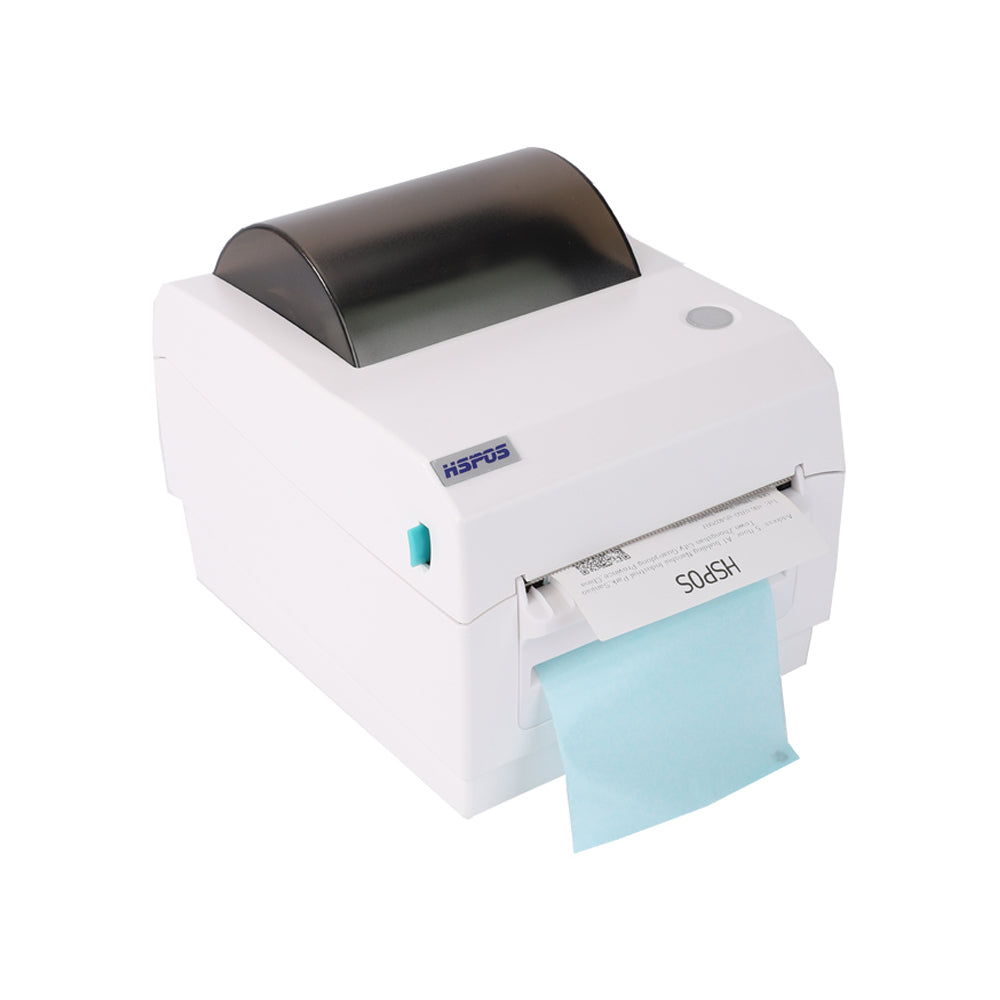
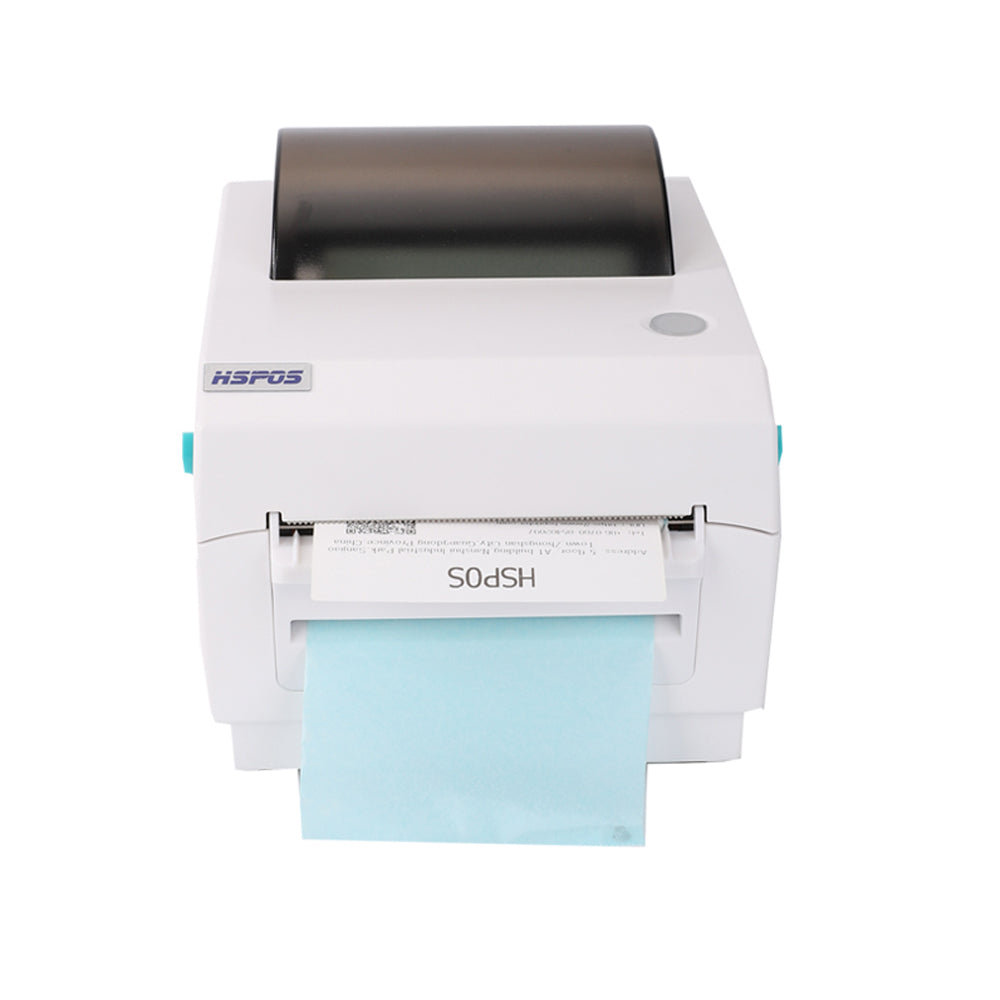
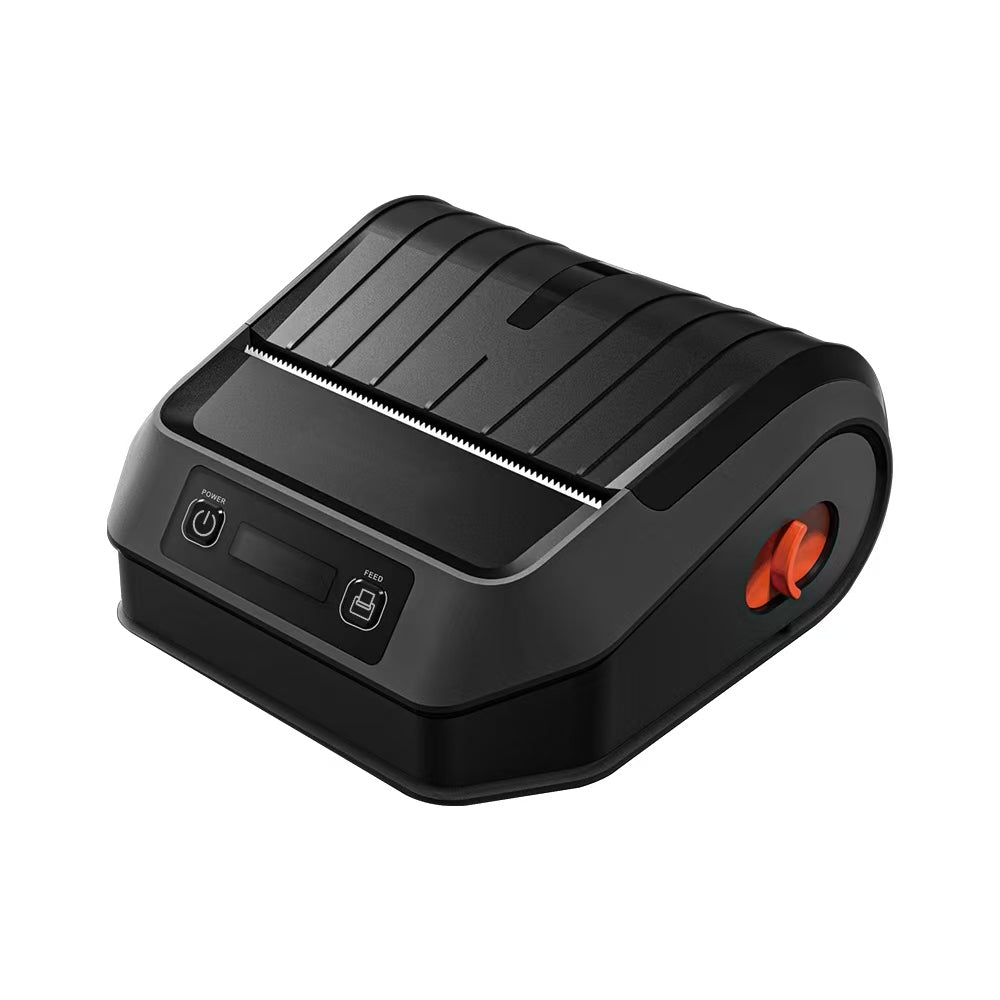
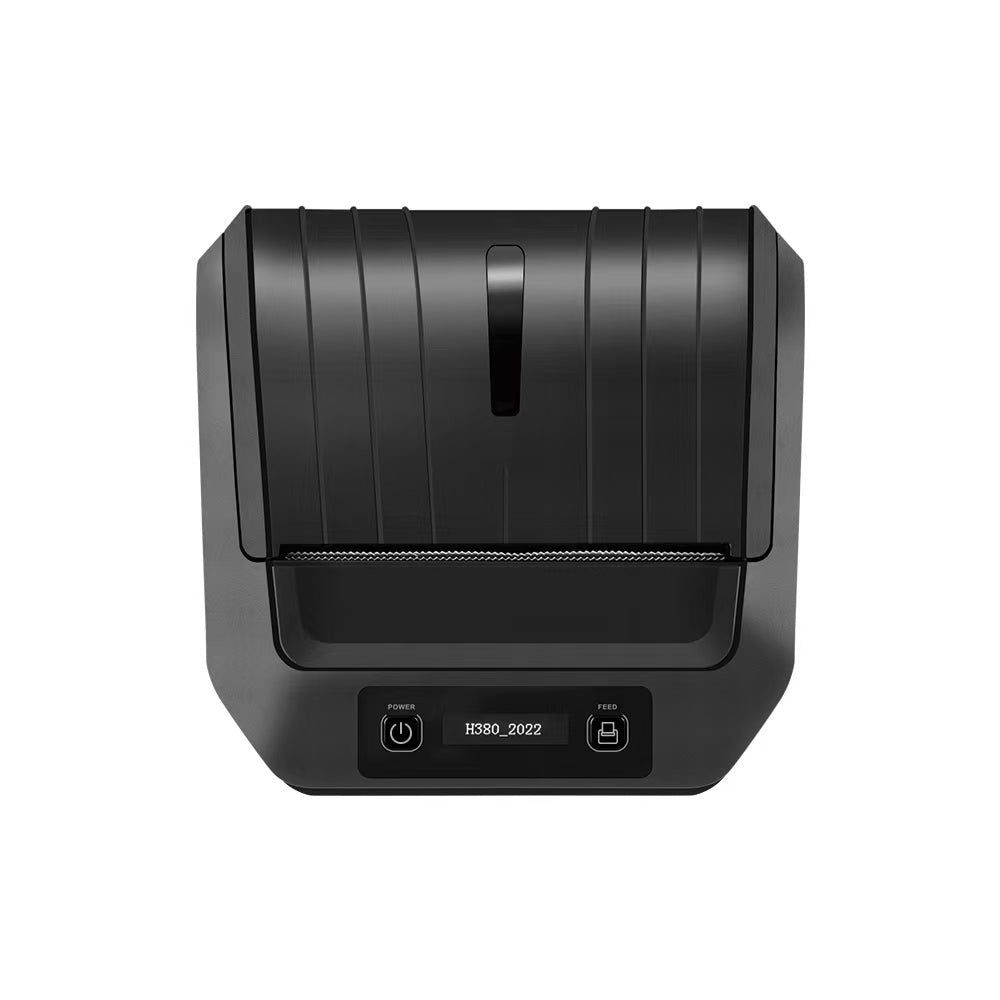
For rapid e-commerce shipping, the TechPOS HS-K38 4-inch Label Printer is the industry benchmark. Operating at 180mm/s with a crisp 203 DPI output, it uses an auto-gap sensor to calibrate media sizes instantly.
**Step-by-Step Direct Thermal Calibration Checklist**:
- Media Loading: Open the cover and feed the 4x6 adhesive paper through the adjustable green media guides. Ensure the guides snuggly touch the edges of the roll to prevent horizontal drifting.
- Auto-Gap Training:
- Turn off the printer power.
- Press and hold the FEED button, then turn the power switch back on.
- Release the button after the printer flashes red once and feeds out 2-3 blank labels. The sensor will automatically measure the gap distance between labels and register the media length in the memory.
- Driver Alignment: In your Windows or Mac driver settings, select "Thermal Label" as the media type and set the tracking mode to "Web (Gap)" rather than "Continuous."
3. Calibrating Thermal Transfer for Nylon Taffeta and Satin Ribbon
The clothing and textile industry poses the hardest labeling challenges. Fabric care tags must carry micro-text and complex laundry symbols that remain legible through fifty or more industrial wash cycles. Because textiles are non-porous and highly flexible, they require precise heat calibration.
**The Textile Specialist: Thermal Transfer Precision**
For premium apparel branding, the TechPOS HS-3064TA Industrial Wash Care Printer is essential. Available in high-definition 300 DPI, it utilizes a dual-motor thermal transfer mechanism to manage the high tension required for 300-meter wash-resistant resin ribbons.
**Step-by-Step Fabric Tag Calibration Checklist**:
- Ribbon Alignment: Load the 300M wash-resistant resin ribbon. Ensure the ribbon is completely flat without wrinkles. Wrinkles on the ribbon will create white "hairlines" across your barcode.
- Sensor Mode Selection: Unlike die-cut adhesive shipping labels that have a physical "gap" (backing paper exposing a cut), textile ribbons like satin or nylon are continuous media.
- In the driver, change the sensor tracking from "Gap" to "Continuous" or "Black Mark" (if using wash tags with pre-printed black sensor lines on the back).
- Heat (Darkness) vs. Tension Calibration:
- Nylon Taffeta: Requires moderate heat (Setting 10-12) and medium print speed (50-75mm/s). Setting the heat too high will melt the nylon, causing the edges to curl.
- Satin Ribbon: Requires high heat (Setting 13-15) and slow print speed (50mm/s) to ensure the heavy ink resin fully bonds to the woven satin fabric.
4. Hardware Calibration in POS Systems and High-Traffic Receipt Printing
For many restaurateurs and grocery store owners, printing receipt paper is a standard transaction task. However, in modern setups using food delivery tablets (DoorDash, UberEats), printing becomes a high-concurrency software challenge.
To handle multiple devices sending print streams simultaneously, B2B networks rely on smart multi-device print hubs.
**The Connectivity Hub: High-Concurrency Receipt Printing**
The TechPOS HS-M80 Multi-Device Order Printer can bridge up to 7 Android tablets concurrently over Bluetooth or Wi-Fi. Correct receipt calibration ensures that auto-cutters trigger precisely at the end of each order without truncating order details.
**Receipt Calibration and Concurrency Troubleshooting**:
- Continuous Paper Calibration: Receipt paper does not have gaps. Set your printer driver to "Receipt/Continuous."
- Auto-Cutter Alignment: Ensure the driver's "Post-Print Action" is set to "Partial Cut." If the cut is incomplete, clean the cutter assembly with isopropyl alcohol to remove accumulated paper dust.
- IP Address Binding: To prevent tablet connection dropouts, bind the HS-M80 to a static IP address in your router settings rather than relying on dynamic DHCP leases.
5. Troubleshooting: The Top 3 Common Printer Calibration Errors
| Symptom | Probable Cause | Diagnostic & Solution |
|---|---|---|
| Printer feeds 2-3 blank pages and flashes Red Light | Sensor out of alignment or wrong sensor mode. | Run the "Auto-Gap Training" sequence. Verify in driver that "Media Type" is set to "Labels with Gaps" and not "Continuous." |
| White lines or spots appear on the printed barcode | Dust on printhead or wrinkled thermal transfer ribbon. | Turn off power. Clean the printhead elements using an alcohol swab. Re-tension the ribbon to ensure a flat, smooth feed. |
| Print is faded, light, or easily scratches off | Insufficient heat or incorrect ribbon-media pairing. | Increase "Darkness" in the driver. Ensure you are using a resin ribbon for nylon taffeta, and a wax/resin ribbon for matte adhesive paper. |
Conclusion: Securing Your B2B Operations
A perfectly calibrated thermal printer is the backbone of seamless B2B operations. By selecting the correct media sensor settings, managing your printhead darkness, and using professional-grade hardware like the HS-K38 and HS-3064TA, you eliminate costly downtime and compliance rejections.
At TechPOS, we don't just supply raw hardware—we build integrated systems designed for long-term operational resilience. Keep your sensors clean, your drivers updated, and your production line moving.
The Future of B2B Retail and Manufacturing: A Masterclass in High-Precision POS Hardware
The Ultimate Connection Guide for Barcode Printers and POS Hardware: Windows, Mac, iOS, and Android Platforms
Related Posts

The Ultimate Fulfillment Tool for E-commerce Sellers: TechPOS TP-K38 High-Speed Thermal Label Printer Review

The Ultimate Guide to Android-Compatible Barcode Printers in Australia & Canada: Reliable Hardware for Shopify & DoorDash

Multi-Platform Integration: Connecting Your 14-inch POS to Shopify, Square, and UberEats

The Future of AI Weighing: How Smart Scales are Transforming Grocery Checkout in 2026

The 2026 Master Guide to Setting Up Multiple Delivery Tablets with the HS-M80 (TP-M30)

Ending the 'Ghost Order' Nightmare: Why Your Kitchen Needs Industrial Concurrency

The Multi-Tablet Revolution: How to Connect 7 Food Delivery Devices to One Bluetooth Printer