How to Connect Multiple Delivery Tablets (DoorDash, UberEats, Skip) to a Single Bluetooth Receipt Printer
Blog Draft 2: How to Connect Multiple Delivery Tablets (DoorDash, UberEats, Skip) to a Single Bluetooth Receipt Printer
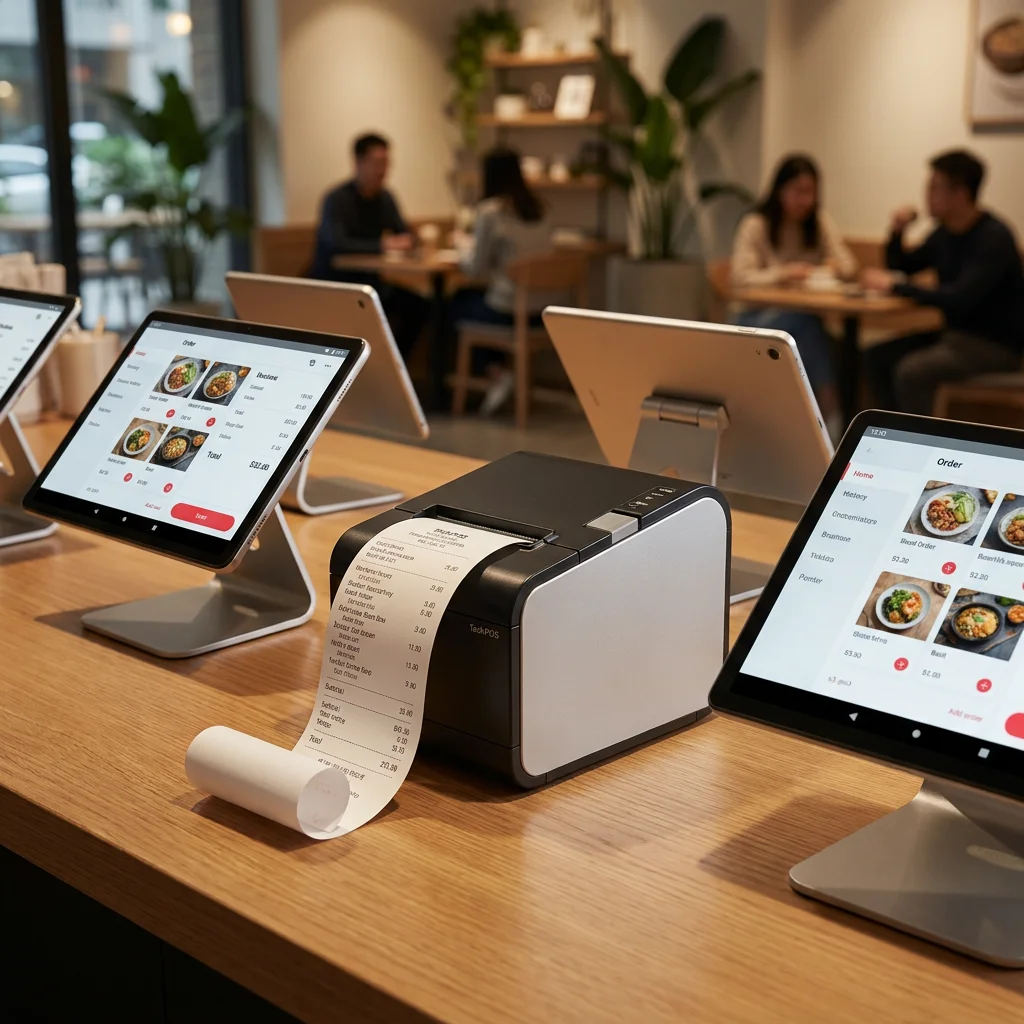
If you own a restaurant or managed kitchen in 2026, you know that the "online food delivery boom" has brought both massive revenue opportunities and serious physical counter-space challenges. In order to capture every possible order in cities like Toronto, Vancouver, Sydney, or Melbourne, your kitchen likely operates across multiple platforms: UberEats, DoorDash, and SkipTheDishes (or Grubhub and Menulog).
But this multi-app model has introduced a new operational frustration that chefs and restaurant owners refer to as the "Tablet Graveyard"—a crowded service counter littered with three different tablets, three tangled power adapters, and most frustrating of all, three separate thermal receipt printers.
Not only does this setup create visual clutter, but it also increases your hardware overhead, wastes paper, and forces your kitchen staff to run between multiple machines during a busy Friday night rush. If a printer jams or loses its connection, your staff will miss orders, leading to customer complaints, refunds, and a drop in your delivery app rating.
What if you could streamline your entire delivery operation by connecting your UberEats, DoorDash, and Skip tablets to one single, high-speed bluetooth receipt printer?
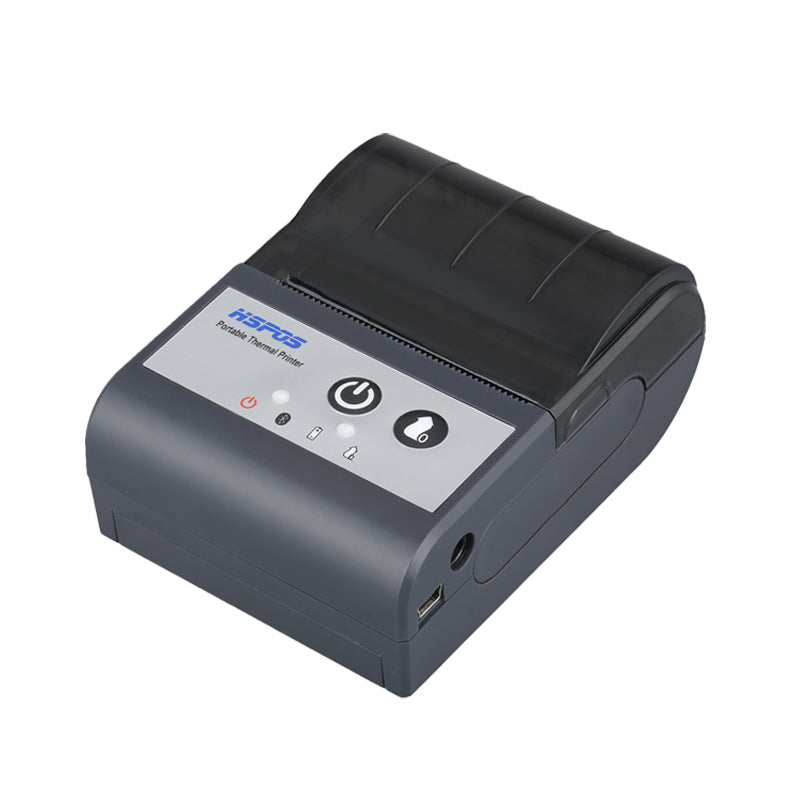
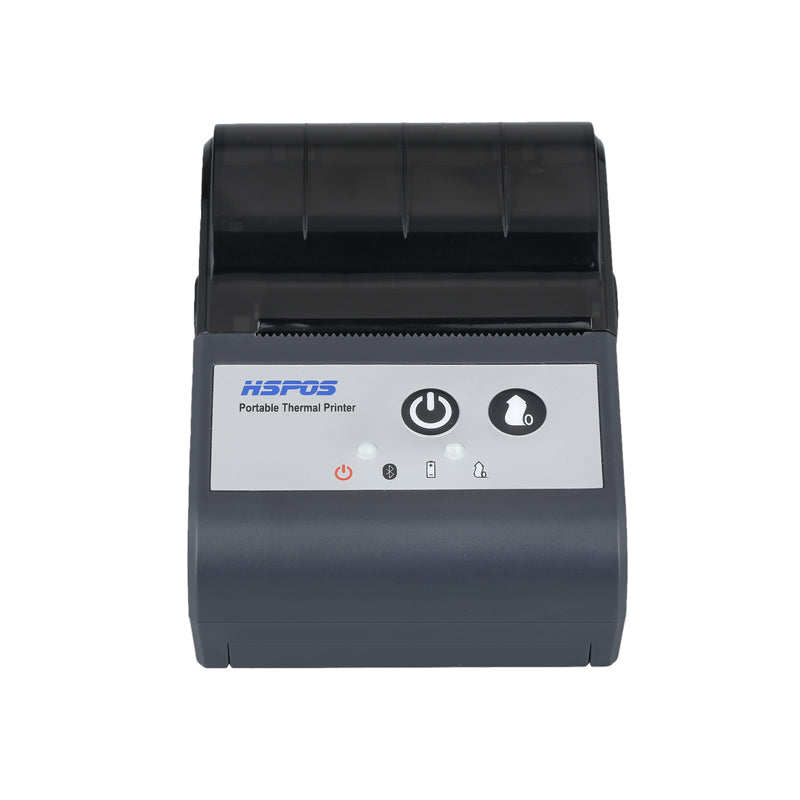
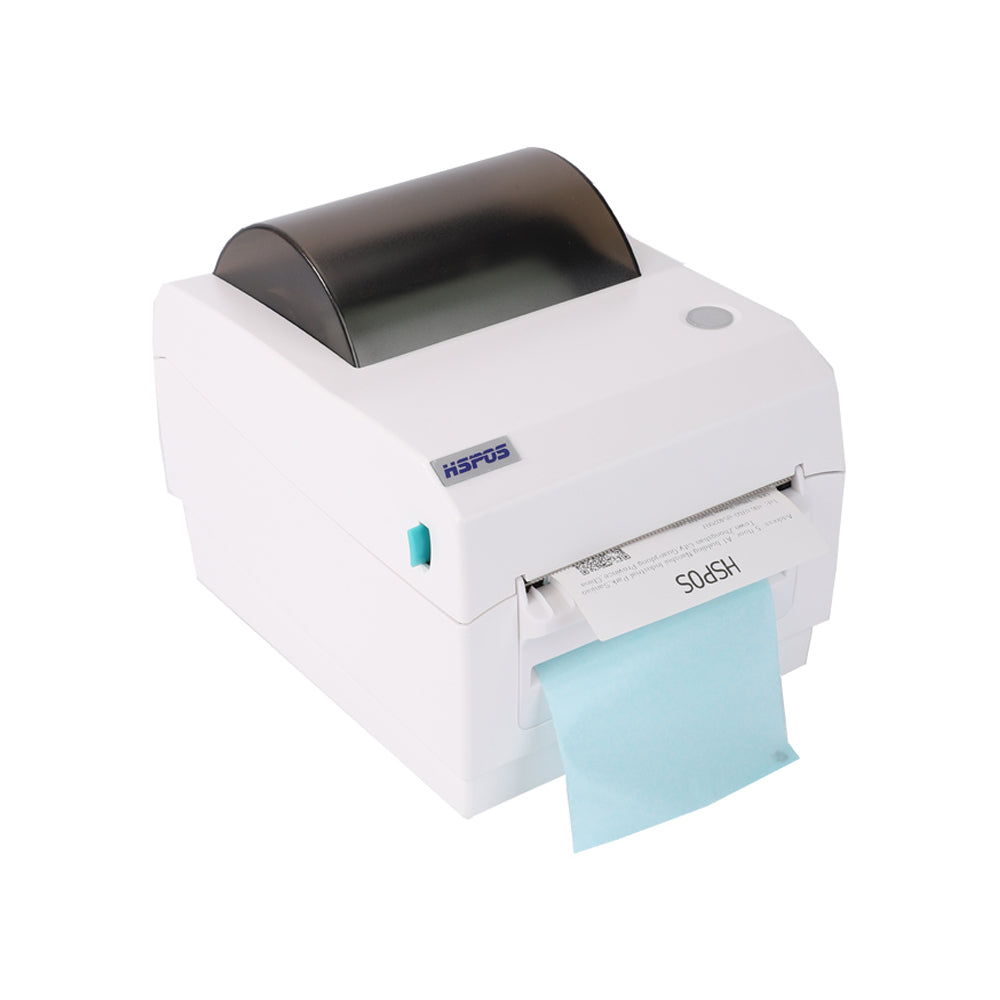
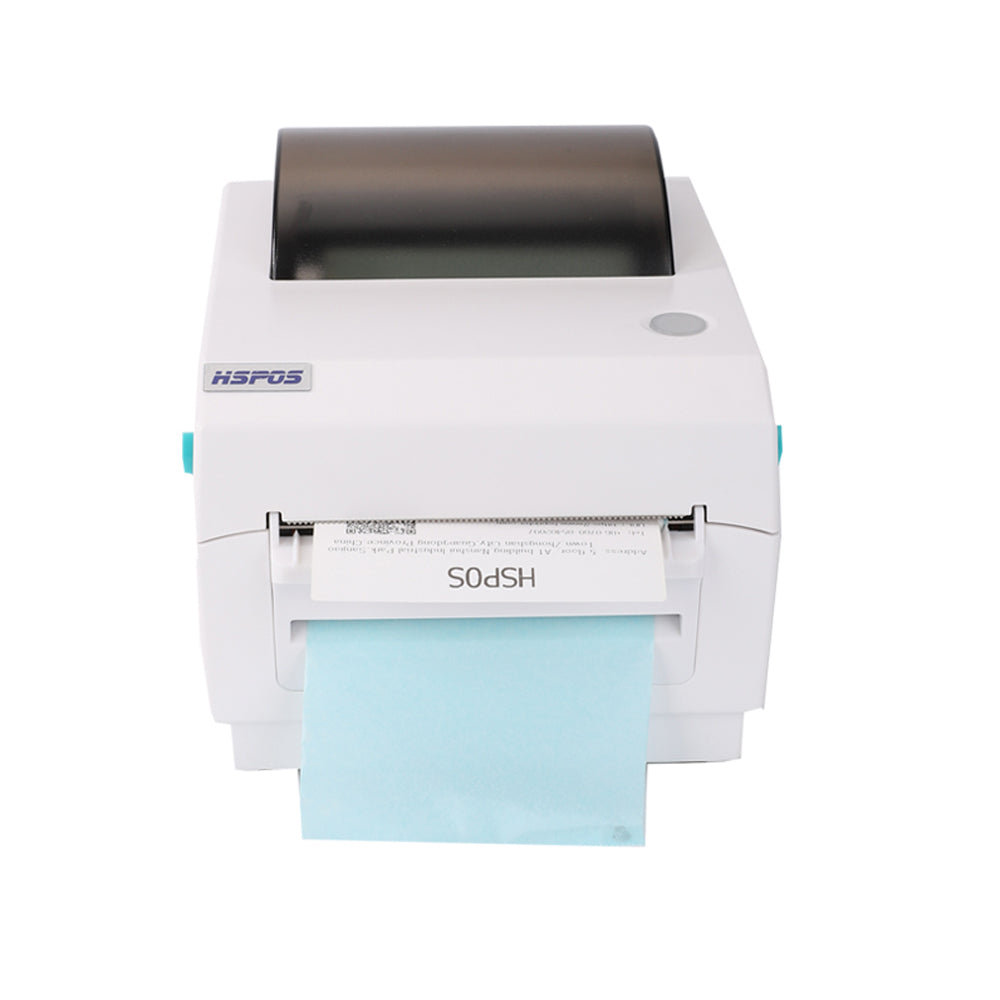
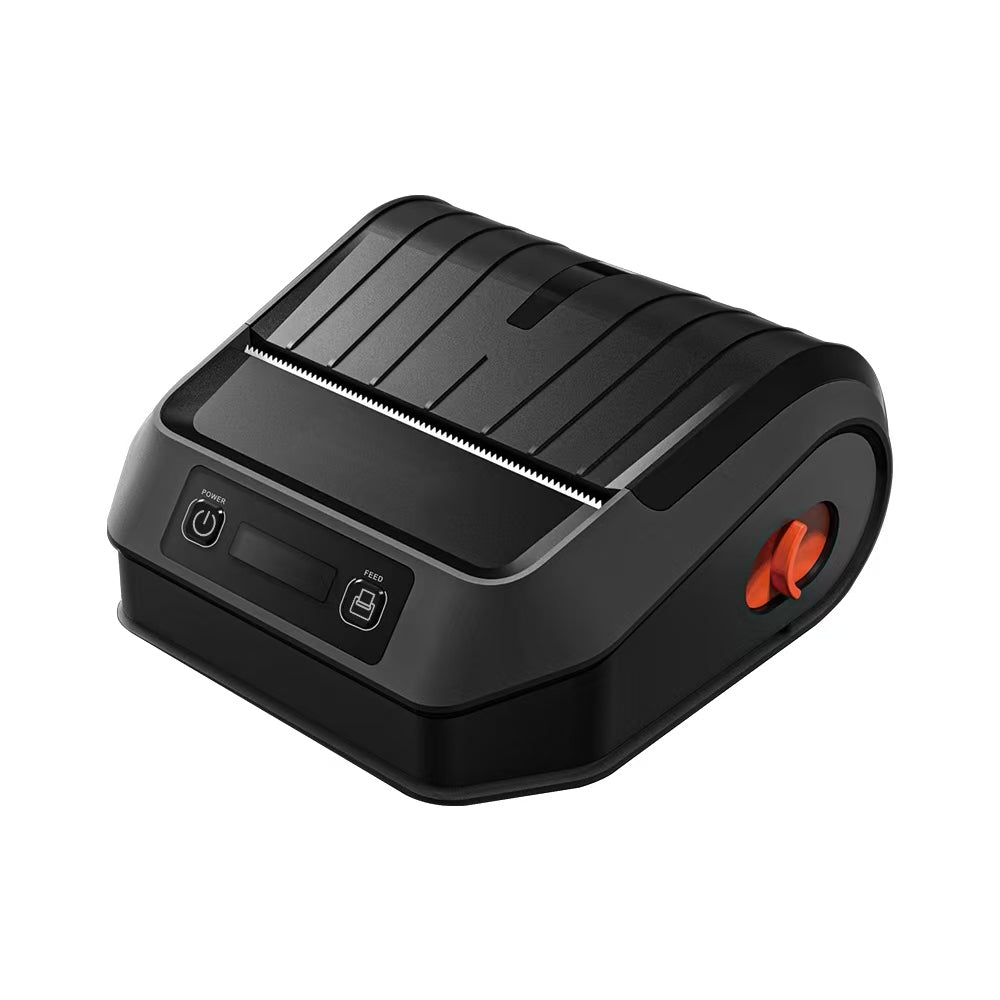
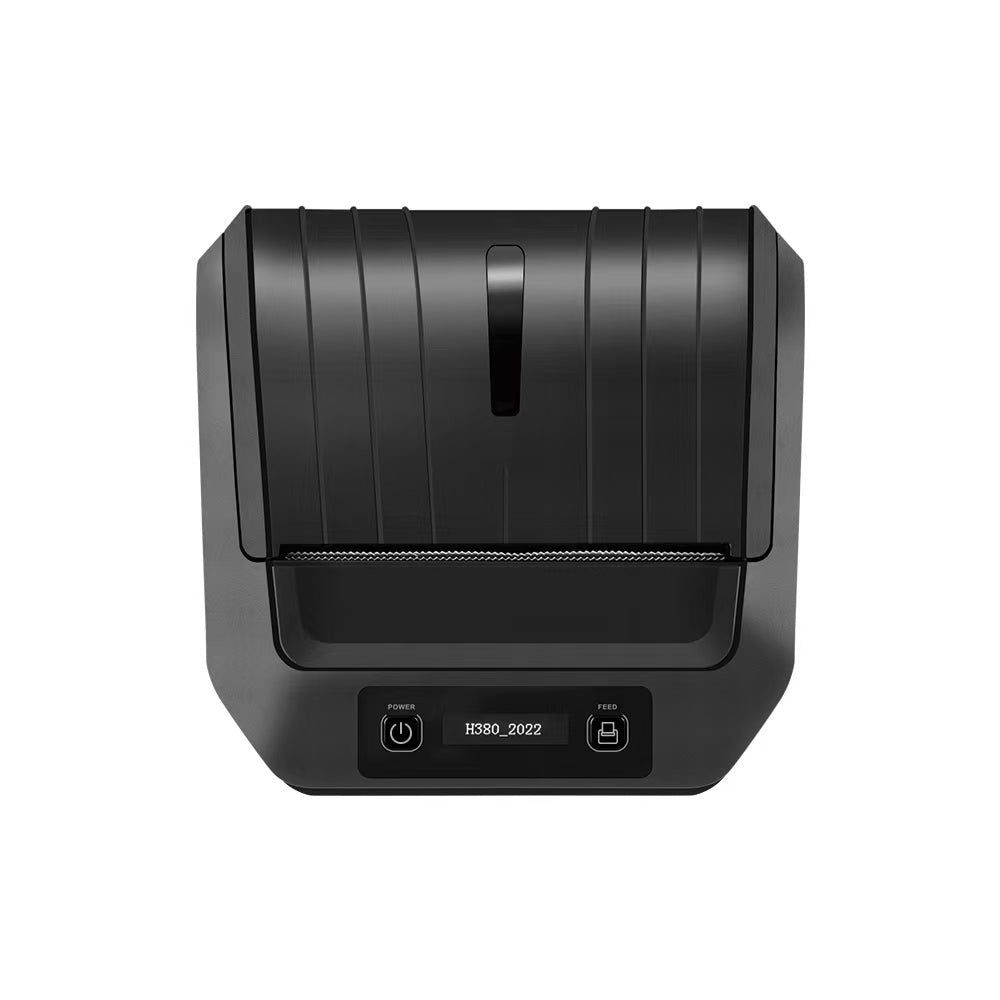
At TechPOS, we don’t just sell printers; we engineer food-service workflows. In this technical guide, we will explain why standard bluetooth receipt printers drop multi-device connections, how our flagship TechPOS HS-M80 3-inch Receipt Printer solves this concurrency problem, and provide a step-by-step setup guide to connect your delivery tablets.
1. The Concurrency Challenge: Why Standard Bluetooth Printers Fail
Many restaurant owners purchase standard, consumer-grade bluetooth receipt printers, hoping to pair all their tablets to it. However, they quickly discover a painful limitation: standard Bluetooth only supports a 1-to-1 connection ratio.
The Technical Limitation of Bluetooth SPP
Standard Bluetooth profiles (specifically SPP - Serial Port Profile) operate on a single-channel peer-to-peer connection. Once an Android tablet running the DoorDash merchant app binds to a standard printer, that channel is locked. If your UberEats tablet tries to send an order command, it will receive a "Device Busy" or "Connection Failed" error.
To bypass this, some kitchens try to constantly disconnect and reconnect devices, but this leads to dropped packets and missed orders. In a busy kitchen, a missed order is a lost customer.
Standard Printer: [DoorDash Tablet] ──── Bluetooth Locked ────> [Standard Printer] ────X (Blocks UberEats)
TechPOS HS-M80: [DoorDash Tablet] ───┐
 [UberEats Tablet] ───┼── Bluetooth/Wi-Fi Multi-Channel ──> [TechPOS HS-M80] (Simultaneous)
 [Skip Tablet] ───┘
Furthermore, standard receipt printers possess tiny internal buffers (RAM). If two orders arrive at the exact same split-second from different apps, a low-cost printer will experience buffer overflow, printing half a receipt or failing to print altogether.
2. The Solution: How the TechPOS HS-M80 Achieves 1-to-7 Concurrency
Our engineering team specifically designed the TechPOS HS-M80 3-inch Receipt Printer to solve this multi-app bottleneck.
Under the hood, the HS-M80 features an advanced, multi-channel Bluetooth 4.2/5.0 module paired with an upgraded print buffer and processor. This allowing it to maintain up to 7 simultaneous connections concurrently.
- Multi-Channel Pairing: The HS-M80 can hold active connections to up to 7 distinct Android or iOS tablets (e.g., 3 delivery tablets, 2 tableside ordering tablets, 1 main cash register, and 1 manager's tablet).
- Print Queue Management (SPOOLING): When print streams arrive simultaneously, the HS-M80's internal firmware spools the files in order of arrival, executing clean cuts between orders, ensuring no text overlaps or lost tickets.
3. Step-by-Step Setup: Connecting Multiple Delivery Tablets to the HS-M80
Ready to clean up your counter space? Here is how to configure your multiple delivery tablets to run on a single TechPOS HS-M80 Printer:
Step 1: Initialize the HS-M80 Bluetooth Mode
- Plug in and power on your TechPOS HS-M80 printer.
- The printer's default Bluetooth broadcast name is typically "POS Printer" or "HS-M80".
- Ensure the printer is loaded with standard 80mm thermal receipt paper.
Step 2: Pair Tablet #1 (e.g., DoorDash)
- Open the Settings menu on your DoorDash Android tablet.
- Go to Bluetooth and scan for devices.
- Select "POS Printer" or "HS-M80" and input the default pairing PIN (usually
0000or1234). - Once paired, open your DoorDash Merchant App (Order Manager).
- Go to Settings -> Printer Setup. Select your paired Bluetooth printer, select "80mm / 3 inch" paper size, and print a test receipt.
Step 3: Pair Tablet #2 (e.g., UberEats) without Disconnecting Tablet #1
- Do not turn off Bluetooth on the first tablet. Keep it active.
- Take your UberEats tablet, go to Settings -> Bluetooth, and scan.
- Because of the HS-M80’s multi-channel capabilities, the printer will still be broadcasting its signal. Select it, pair it using the same PIN, and open the UberEats Merchant App.
- Navigate to Settings -> Receipt Printing, select the paired printer, and run a test print.
Step 4: Pair Tablet #3 (e.g., SkipTheDishes)
- Repeat the same process with your third tablet.
- Once completed, test sending an order from both Tablet #1 and Tablet #2 simultaneously. The HS-M80 will cleanly queue both receipts, printing them back-to-back with clean, automatic paper cuts.
4. Operational Best Practices for Multi-App Printing
To ensure maximum speed and legibility under high-concurrency peak hours, configure your delivery app settings with these professional tips:
- Font Scaling: Inside your Merchant App printer settings, set your default font size to "Normal" or "Large." The HS-M80’s high-density printhead ensures that even small modifier fonts remain perfectly crisp, preventing preparation mistakes (like missing an allergy instruction).
- Auto-Cut Settings: Ensure "Auto-Cut" is toggled ON in every app. The HS-M80’s durable auto-cutter is rated for 1.5 million clean cuts and utilizes standard ESC/POS cutter sequences to instantly separate orders.
- Static IP via LAN (Optional): If your kitchen has a high-density Wi-Fi environment that causes occasional Bluetooth interference, the HS-M80 also features an Ethernet (LAN) interface. You can plug the printer directly into your router and connect all tablets over your local Wi-Fi network, providing an even more robust connection.
5. Why B2B Restaurants Choose TechPOS
In the hospitality sector, reliability is your reputation. If your kitchen printer goes offline during dinner, you are losing money every minute.
By upgrading to the TechPOS HS-M80, you benefit from:
- Eliminating Hardware Waste: 1 printer instead of 3 means 66% less paper roll waste and lower electricity costs.
- Ontario & Melbourne Stock: Order today and receive your hardware within 3 to 7 days, direct from our local warehouses in Canada and Australia.
- True ESC/POS Compatibility: Out-of-the-box support for receipt formatting, bold lettering, double-width characters, and cash drawer kick-outs.
Conclusion: Take Control of Your Kitchen’s Counter Space Today
Juggling multiple tablets does not have to mean juggling multiple printers. By utilizing the concurrent Bluetooth technology in the TechPOS HS-M80, you can clear the cable clutter, optimize your packing line, and ensure your staff never misses a critical food order.
👉 Ready to declutter your kitchen and streamline your delivery workflow?
Order the TechPOS HS-M80 Multi-App Delivery Printer Now and reclaim your restaurant's counter space today.
Why Is My Thermal Label Printer Skipping Labels or Printing Blank? Calibration & Troubleshooting Guide
The Ultimate POS Hardware Checklist: Scaling Your Business from Pop-up Shops to Enterprise Fulfillment
Related Posts

The Ultimate Fulfillment Tool for E-commerce Sellers: TechPOS TP-K38 High-Speed Thermal Label Printer Review

The Ultimate Guide to Android-Compatible Barcode Printers in Australia & Canada: Reliable Hardware for Shopify & DoorDash

Multi-Platform Integration: Connecting Your 14-inch POS to Shopify, Square, and UberEats

The Future of AI Weighing: How Smart Scales are Transforming Grocery Checkout in 2026

The 2026 Master Guide to Setting Up Multiple Delivery Tablets with the HS-M80 (TP-M30)

Ending the 'Ghost Order' Nightmare: Why Your Kitchen Needs Industrial Concurrency

The Multi-Tablet Revolution: How to Connect 7 Food Delivery Devices to One Bluetooth Printer